Upload Speech Recording
Click or drag & drop your audio/video file here
Supported: MP3, MP4, WAV, M4A, WebM, MOV
Videos over 50 MB are compressed automatically so they can be stored (e.g. for training).
Evaluating Speech...
Analyzing speech content and delivery...
Loading analytics…
API Keys
Set your evaluation API keys (Gemini, OpenAI, Claude) and optional SpeechGradebook Text Model (Mistral) URL. Instructors in your department use your institution keys if they don't set their own (Admins: set in Settings → Admin → Institution API keys).
SpeechGradebook v3.0
Step-by-step guides for the main areas of SpeechGradebook. Content below is relevant to your role where noted.
How to Evaluate a Speech
Run an AI evaluation on a student's audio or video recording.
- Click Evaluate Speech in the navigation.
- Upload an audio or video file (MP3, MP4, MOV/QuickTime, WAV, M4A, WebM; for GPT-4o, image/screenshot also supported). Videos over 50 MB are compressed automatically.
- Select or create a course and student (or enter details). Choose a rubric.
- Choose an API provider in the evaluation flow (Gemini, GPT-4o, Claude, SpeechGradebook Text Model (Mistral), or SpeechGradebook Text + Video Model (Qwen)) and ensure the key or server URL is set in Settings.
- Click Continue to Evaluation and wait for analysis.
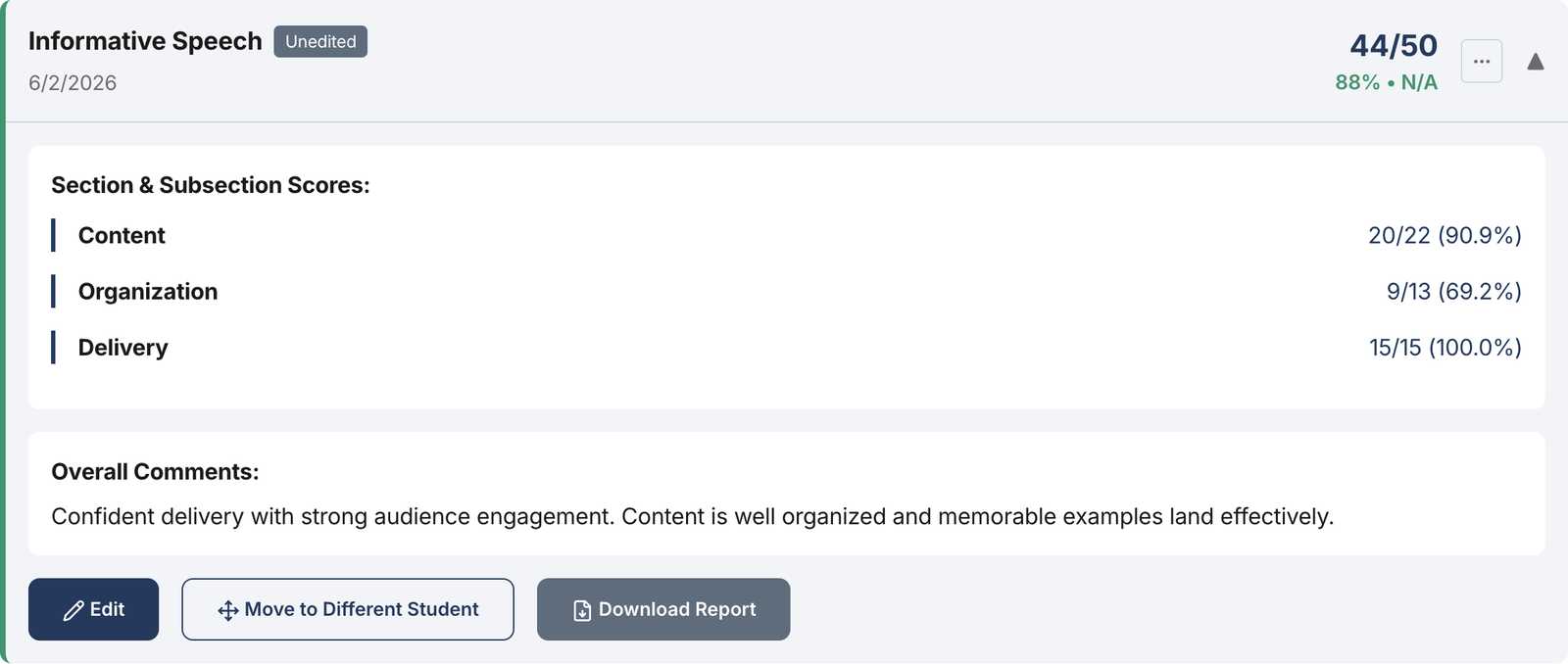
- Review results, download PDF, or email to student.
Getting API Keys
Save provider keys or the SpeechGradebook Text Model (Mistral) server URL in Settings → General → API Keys so you don't re-enter them each time.
- Google Gemini (recommended): aistudio.google.com/app/apikey
- OpenAI GPT-4o: platform.openai.com/api-keys
- Anthropic Claude: console.anthropic.com
- SpeechGradebook Text Model (Mistral): Enter your evaluation server URL (e.g. your Render or local server).
How to Start Qwen (Text + Video Model) Super Admin
The SpeechGradebook Text + Video Model (Qwen) runs on your own infrastructure (e.g. ISAAC). Set the Qwen Service URL in Settings → General (select SpeechGradebook Text + Video Model (Qwen), enter the URL, Save). Use Check Qwen status there to see if the service is reachable.
- Quick tunnel (URL changes each time): On an ISAAC compute node, run Qwen and
cloudflared tunnel --url http://localhost:8001; copy thehttps://….trycloudflare.comURL into Settings and on Render asQWEN_API_URL. Seellm_training/START_QWEN_FOR_RENDER.md. - Stable URL (named tunnel): Create a Cloudflare named tunnel and a fixed hostname (e.g.
https://qwen.yourdomain.com). Set that URL on Render once. Steps:llm_training/QWEN_NAMED_TUNNEL.md.
Managing Courses Instructor
From the Dashboard, create and manage courses. Add students, run evaluations, and view history. Data is stored in the cloud (Supabase) for your institution.
- Open Dashboard and use the Courses tab.
- Create a course (name, term, year, modality). Add students to the course.
- Evaluations are linked to course and student; view and filter from the course or from Course Insights.
Custom Rubrics Instructor
Create rubrics tailored to your assignments. The AI scores and comments using your criteria.
- Dashboard → Rubrics. Create a new rubric or use an existing one.
- Define categories, subcategories, and point values. For blank rubrics (PNG, PDF, Google Sheets, or Excel): use Import Rubric from File (Extract & Create Rubric), or create the rubric manually in the UI.
- Select the rubric when starting an evaluation.
Course Insights (Analytics) Instructor
View overview metrics, comparisons, and evaluation lists. Export data from the Export tab. Admin and Super Admin see department- or institution-wide dashboards and filters.
Consent
In Settings → Consent, generate student consent links per course. Students open the link and submit consent; evaluations for consenting students can be stored in the cloud. Instructor LLM consent is requested once at first use.
Admin & Institution Management Admin Super Admin
Admins see Settings → Admin: manage API keys for the institution, view all courses (with filters). Super Admins can manage institutions, themes, fonts, and global settings.
Technical reference for using SpeechGradebook features and workflows.
Navigation & Sections
The header shows the app name, main navigation links, and the logged-in user's name (from your profile) next to Logout. Main sections: Evaluate Speech (run evaluations), Dashboard (Courses, Rubrics, Course Insights), Settings (General, Consent, Admin if applicable), Support (this area). Visibility of Dashboard tabs and Settings tabs depends on your account tier (instructor, admin, super_admin).
Evaluation Flow
Multi-step wizard: upload file → course/student/rubric → API provider → run evaluation → results. You can download a PDF report or email the student from the results step. Supported media: MP3, MP4, MOV/QuickTime, WAV, M4A, WebM; GPT-4o also accepts image/screenshot (JPG, PNG).
Dashboard
Courses: Create/edit courses, add students, see evaluations per course. Rubrics: Create and edit rubrics; use extract-from-PDF to build criteria. Course Insights: Overview, comparisons, evaluation list, and export. Admins see institution/department scope and instructor filters.
Settings
General: Tenant/theme selector, API keys (Gemini, OpenAI, Anthropic, SpeechGradebook Text Model (Mistral) URL, SpeechGradebook Text + Video Model (Qwen) URL). Consent: Generate student consent links; view consent status. Admin: (Admin/Super Admin only) Institution API keys, course filters, and (Super Admin) institution list, theme customizer, font packages.
Themes & Branding
Institutions can have a custom theme (colors, logo, fonts). Super Admins configure themes per institution in Settings → Admin → theme customizer. Users in an institution see that theme when selected.
Data management, LLM training, change history, and legal information.
LLM Training Guide Super Admin
Train your own custom speech evaluation model using your institution's evaluation data. This gives you complete privacy, no per-evaluation API costs, and a model trained on your specific rubrics and grading style.
Complete Guides:
- ▸ LLM Training Quickstart — Step-by-step guide with all prerequisites, installation, and troubleshooting
- ▸ LLM Training README — Quick reference for export, convert, train, and serve commands
- ▸ Implementation Guide — Detailed technical documentation for advanced users
Quick access: Go to Platform Analytics → LLM Export tab to export training data.
How Data Is Managed
SpeechGradebook uses Supabase for authentication and database. Data is stored per institution with row-level security (RLS):
- Instructors see only their own courses, students, rubrics, and evaluations.
- Admins see data for their department/institution; they can filter by instructor and view analytics across courses.
- Super Admins can manage institutions, themes, and (where configured) view cross-institution data.
- Student consent is recorded in
consent_forms; evaluations for non-consenting students are not stored in the cloud (local-only behavior when applicable). - Access to student data is logged in audit_logs for FERPA and compliance (purpose, justification, IP, user agent).
Change Log
Recent changes to SpeechGradebook. For the full history, see CHANGELOG.md in the project.
Licensing & Legal
SpeechGradebook is provided for educational use. By using the application you agree to your institution's terms and any applicable privacy policies. Student data is processed in accordance with FERPA and your institution's data agreements. For third-party AI providers (e.g. Google, OpenAI, Anthropic), their respective terms and privacy policies apply to API usage.
Custom / fine-tuned LLM: The optional fine-tuned evaluation model is based on Mistral 7B Instruct (Apache 2.0). If you distribute the model, adapter weights, or training/serving code that includes that model, you must include the Apache 2.0 license and any required attribution (e.g. Mistral AI, and PEFT if applicable). See llm_training/LICENSE in the project for the Apache 2.0 text and third-party notices. Internal use only (no redistribution) does not require including the license in the app UI.
Contact your institution or the support email below for licensing and legal questions.
Contact Support
For questions or technical support, contact: speechgradebook@proton.me